
22:27 16/08/99 Short intro to using Dreamweaver to build web sites.
1 Use only lower case, with no special chars, spaces or underlines etc. for file and folder names. eg use thisname and not THISNAME or Thisname as these are all different files
2 Create a ROOT directory anywhere you like on your system. If you can though, put it in the root of a partition. eg C:\yoursitename NB - no upper case
3 Create several sub folders (as YOU require) in the yoursitename folder. Suggested folders - pics, text, audio and poss others according to your needs.
4 Create an experimental site first by browsing your hard drive for interesting text, pics and audio clips. Copy and paste all the files you want into their respective sub-folders BEFORE you start Dreamweaver.
5 You should now have a folder named yoursitename with sub folders pics, text and audio with various files in them.
6 A word on image and audio formats.
IMAGES Small images say 100x100 should be .gif files. photgraphic images should be .jpg Make the image files AS SMALL AS POSSIBLE. Reduce the number of colours in the image to the minimum. Make good use of background pics, especially TILED background pics.
AUDIO The best option at the moment is to create Real Audio (RA) files as well as mp3s. Cool Edit saves RA files. Just choose the RA option from the save filetype menu. For real time streaming RA is needed. mp3s are usually downloaded in the background. Real Audio cannot be loaded INTO Cool Edit but Win95 will run the Real Audio player when an RA file is double-clicked. (Assuming RA is installed on a system.) Two further things. RA files are not necessarily downloaded to the users machine - ie they don't get to keep them. RA files are about 1/10th the size of high quality mp3.
7 Once you have a collection of files you use three applications to build a site. A text editor - notepad, wordpad or, preferably Dida. A graphics editor - PSP(recommended) iPhotoPlus 4 or anything that lets you save gifs and jpgs. An HTML editor - in this case Dreamweaver.
8 Now we start to create the site. The main file for the site MUST be named index.html. We need to create this file. Easiest way is to run DreamWeaver(DW) and choose a NEW site. Name the site and point DW at its location on your hard drive. Note that you can NAME the site 'BuGG wUMp FixME UP' or anything you like, but observe the lower case rule for the site root FOLDER name - should be buggwumpfixmeup or yoursitename as mentioned previously. Now open a NEW file. Cut and paste some text that you like. Set the text font and size from DW Text menu option. Insert images with DW insert image tool.(on floating toolbar - if you don't see it tick Window\Objects menu option.) You can set a background image by clicking right in the DW main edit window and choosing properties. Here you can set the background image filename and path. When you have the colours and pics as you like them save the file as index.html in the folder yoursitename or buggwumpfixmeup or whatever, but save it INSIDE your main site folder. Choose the Preview in Browser option from DW File menu and check out your page
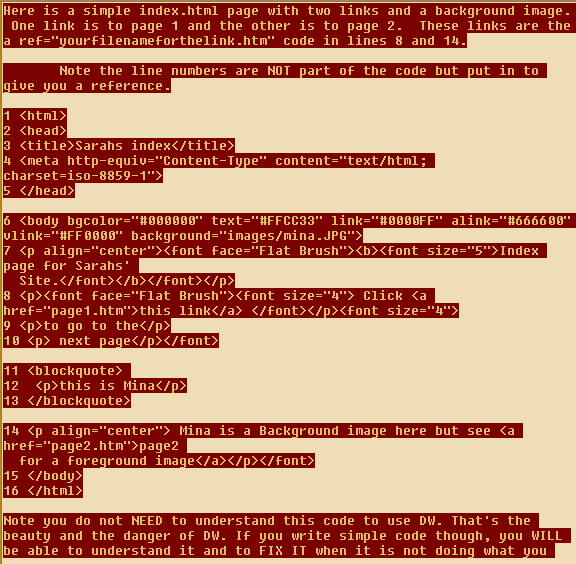
want.
From the top here is an explanation line by line of this code.
NOTE THAT <p> and </p> mark the start and end of paragraphs.
1 The html header not required but makes it easy on the browser.
2 Start of the head of the html doc
3 the title
4 the Metatags - more of these later - they tell a browser what your content is. The more exact your metatags the better a spider or search engine will deliver your URL (Universal Resource Locater - a sites address on the web - every site has a UNIQUE URL of 4 groups of three numbers eg 193 210 453 112 but humans use a named shortcut such as Shamalans' Gate etc.)
5 the html page header ending. note the / forward slash required before certain endings.
6 Start of the body of the html doc.
COLOURS IN RGB
Colours on the computer screen are referred to by their RGB (Red Green Blue) values. These values are three groups of two hex digits running from 00 to FF(256), prefixed with the # hash So #000000 = black (all colours zero) and #FFFFFF = white (all colours full) Red only = #FF0000 Green only = #00FF00 Blue only = #0000FF bgcolor sets the background - black in this case. text sets text colour - orange. link,alink and vlink are the colours respectively for an unclicked 'fresh' link an Active link - one the user is CURRENTLY clicking - so this only flashes briefly as the user selects it. Vlink is the colour that a visted link will display in.
Finally on line 6 background sets the path to the background image selected as before. Note that setting a background image makes a background colour irrelevant to those that are looking at the image background BUT if it is a big image they WILL be looking at the backgound colour and your text will appear in the text colour BUT BEWARE if those colours are the same ! So make sure that you set a background colour and a text colour that will work, even when you set a background picture. No red text on blue or orange on greens PLEASE .
7 All that line 7 does is describe a font and its size with an align for locating the text in the centre
8 This is the first of the link lines the actual link is the text between a href="page1.htm" and the closing /a. In this case - 'this link' is the link that will be shown in BLUE (see line 6 - link = #0000FF) BUT NOTICE THAT AFTER YOU HAVE CLICKED THIS LINK ONCE, IT WILL ALWAYS THEN SHOW IN RED in your browser -See line 6 vlink = #FF0000 as your browser will mark this file as visited.
9-13 -just some text and a blockquote. Blockquotes are used to indent and outdent text lines. DW does this with the CTRL and [] brackets keys. Basically it's an html TAB but trickier.
14 this is the second link, notice it is aligned centre.
15 end of body
16 end of html
We can now create a similar index file by adding the links to your original file. You can make a complete copy of your site by simply copying the folder 'yoursitename' or 'buggwumpfixmeup' to another location on your hard drive. If you have more than one partition copy it to a different partition as well. If you can't think of anywhere, just create a temp folder and shove it in that. Copy your site now to a different folder as a backup.
Most personal sites only take between 2-6 Meg so you can afford several backup copies. Unless you have a lot of sound and image clips you can easily save a site to a floppy. Do this if you require foolproof back up.
Before we can link we need something to link to so create a new page with DW and call it page1.htm. Follow the same procedure as for index.html and create and save the page as page1.htm INSIDE THE text FOLDER in the yoursitename folder.
Adding links in DW is simple. Add the text that is to be the link eg 'Clik Here to go to page1' highlight this text, clik right and choose Make Link. Then point to the file that you wish to link to, in this case the filepath is something like C:\yoursitename\text\page1.htm . As soon as you have done this by highlighting the link again and again clicking right you can choose View Linked Page in DW. If this works SAVE ALL OPEN files then choose preview in browser.
It is important to realise that you can have two or more active editors with the SAME FILE LOADED. You must first save any file that you wish to preview. Once a file is in Internet Explorer (or Netscape if you must), choosing refresh will display any changes that you SAVE OUT from your editor before refreshing.
NB With several active versions of a document, if you have to close down, Windows will ask you to save each doc. However if they are the same doc, you may not be presented with the latest version as the last save option. I just did this while I was writing this ! Make sure that you close duplicate files by saving only the latest version or you will lose data.
Thus endeth lesson one.
Coming up in lesson two - FRAMES and why you need them. Style Sheets, Java, Timelines - do you need them ?